
![How to Check Backlinks in Google Analytics [Step-By-Step Guide]](https://shoutex.com/hubfs/How%20to%20Check%20Backlinks%20in%20Google%20Analytics%20%5BStep-By-Step%20Guide%5D.jpg)
You can use Google Analytics to track your site’s backlinks. And you’ll learn how in this simple three-step guide.
But in Google Analytics 4, backlinks are called referrals. So this is what to look for.
So with that in mind, here’s how to check backlinks in Google Analytics 4.
And if you’re looking to check backlinks like a ninja, part two of the guide dives into advanced techniques. So stick around and learn how.
Step One – Select the Correct Google Analytics 4 Property
Before you can check backlinks in Google Analytics 4, make sure you are in the correct GA4 property and data stream.
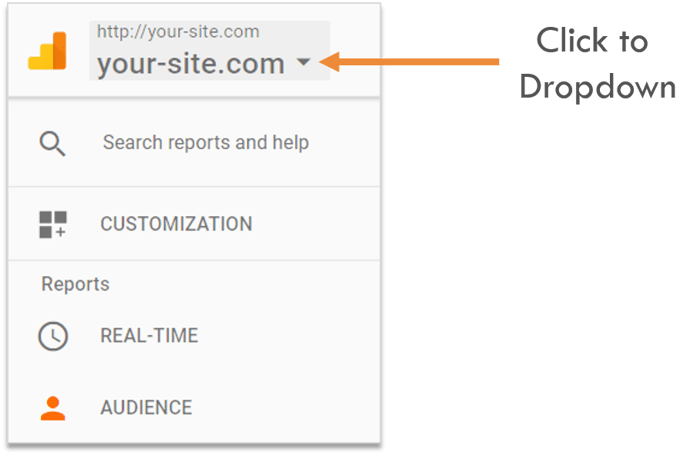
When you login into Google Analytics 4, you’ll see the site you’re analyzing in the top right hand of the page. Drop down the menu and select the correct site.
Step Two – Open the Referral Report in Google Analytics 4
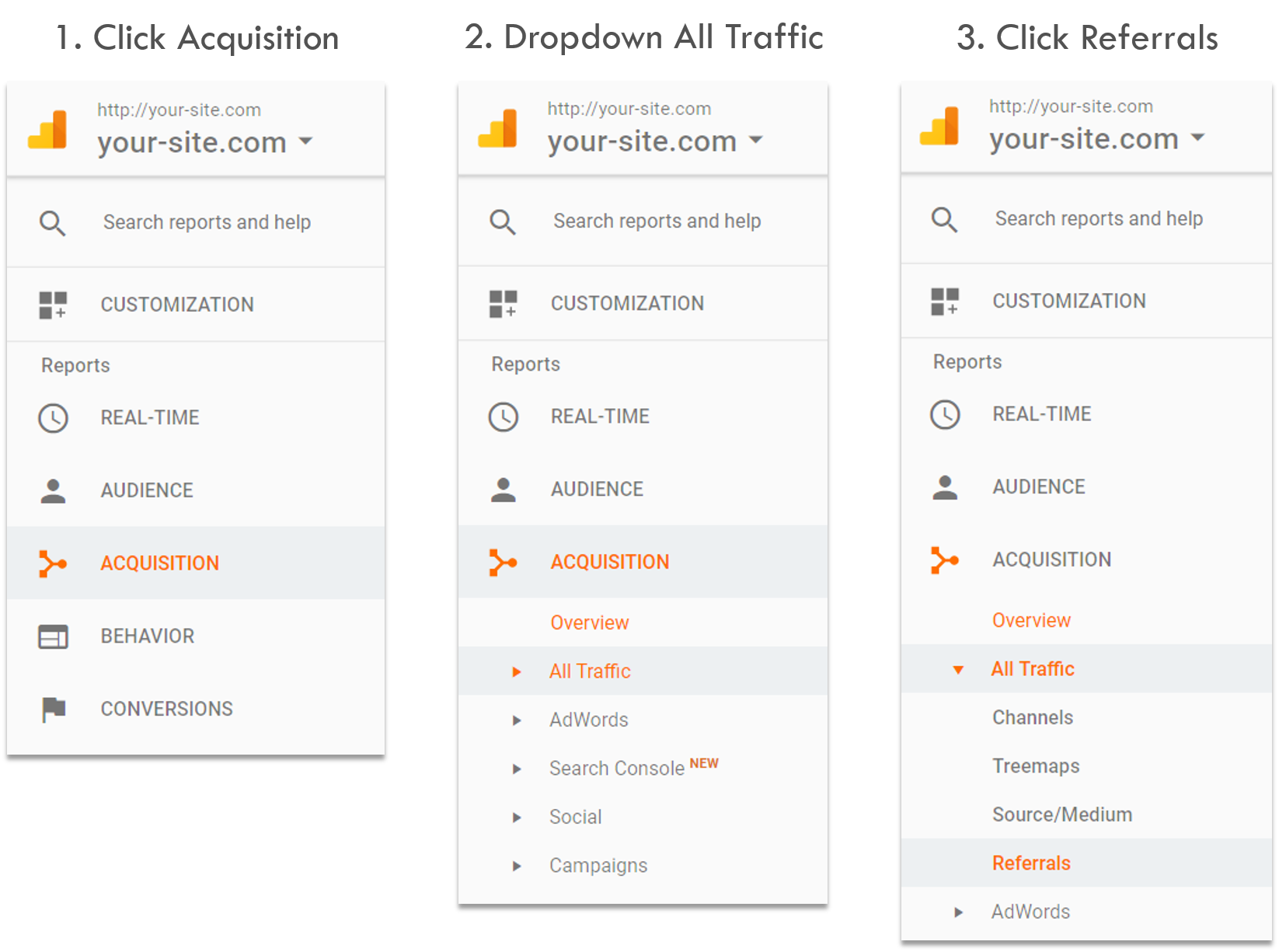
To check backlinks in Google Analytics, go to the Acquisition reports and open the referral traffic report in GA4.
Step Three – Check your Backlinks Using the Referral Report
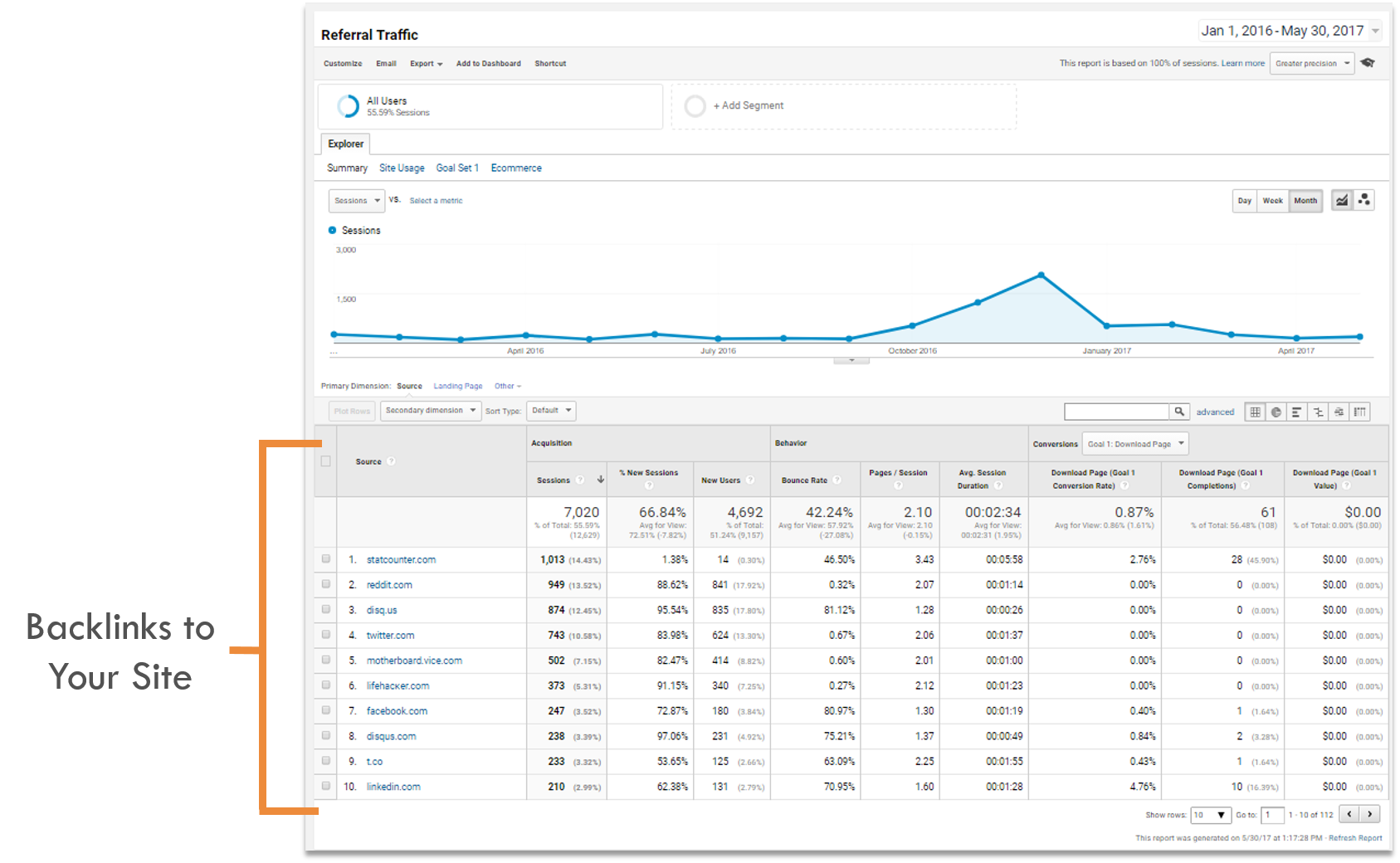
The referral traffic report is where your backlink data lives. The referral traffic report is where your backlink data lives in GA4, so this is the main view you use when you want to find backlinks in Google Analytics.
You now know how to check backlinks in Google Analytics 4. Keep reading to learn advanced techniques for checking backlinks.
In Google Analytics 4, backlinks are not labeled as “backlinks” in the interface. Instead, they appear as referral traffic from external domains that link to your site and send visitors. When you check backlinks in Google Analytics, you are really looking at which referral sources and referral paths are sending traffic.
Advanced Techniques for Checking Backlinks in Google Analytics 4
With the basics of how to check backlinks in Google Analytics 4 now in the books, it’s time to start having fun with GA4’s segments, dimensions, and filters.
How to Check Backlinks in Google Analytics 4 (GA4)
Backlinks show up as referral traffic inside Google Analytics 4, so when you check backlinks in Google Analytics you are really checking which referral sources are sending traffic to your site. This section walks through how to check backlinks in Google Analytics step‑by‑step using the GA4 referral reports.
Adding New Audience Segments
Start slicing and dicing your backlinks using audience segments. This technique breaks down different visitor “types” coming to your site through backlinks.
To do this…
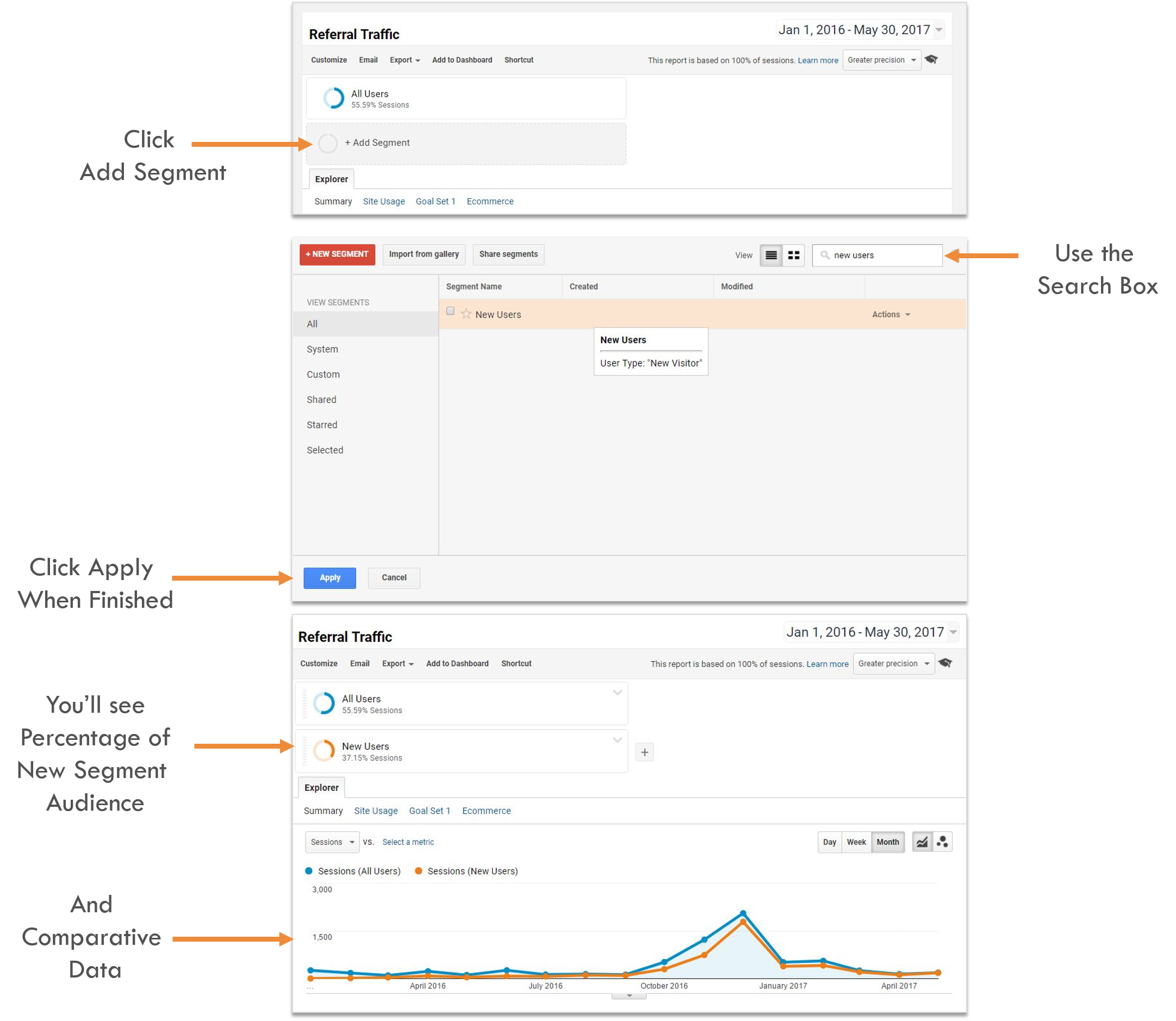
- First, click “Add Segment” at the top of your Referral Report. This will open audience segment options.
- Then, use the search box to find specific audiences. You can also browse through the list of audience segment options. But if it’s your first time, give “new users” a try.
- Make sure to click “Apply”. This saves your audience segment.
- Now you’ll see the percentage of traffic from your new audience segment. And you’ll also see comparative data throughout the report.
Audience segments paint a picture of your backlink visitors. For certain audience segments, you won’t see any data. For example, organic traffic. Because that audience is also acquisition traffic. So if you’re not seeing data for certain audience segments, it’s not a problem.
Primary Dimensions
Use primary dimensions to see backlink sources and landing pages receiving backlinks.
The default primary dimension is “source”. This shows you the backlinking domains.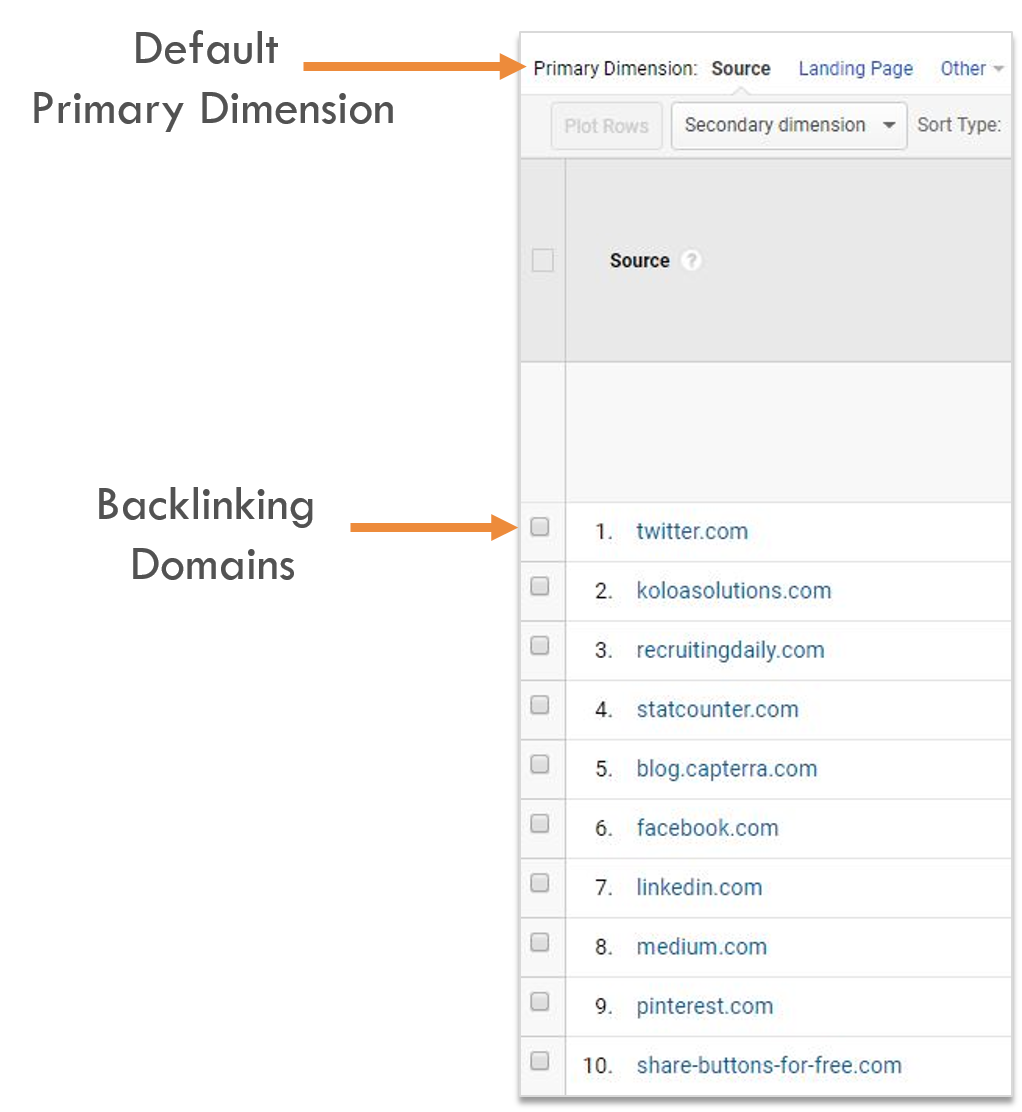
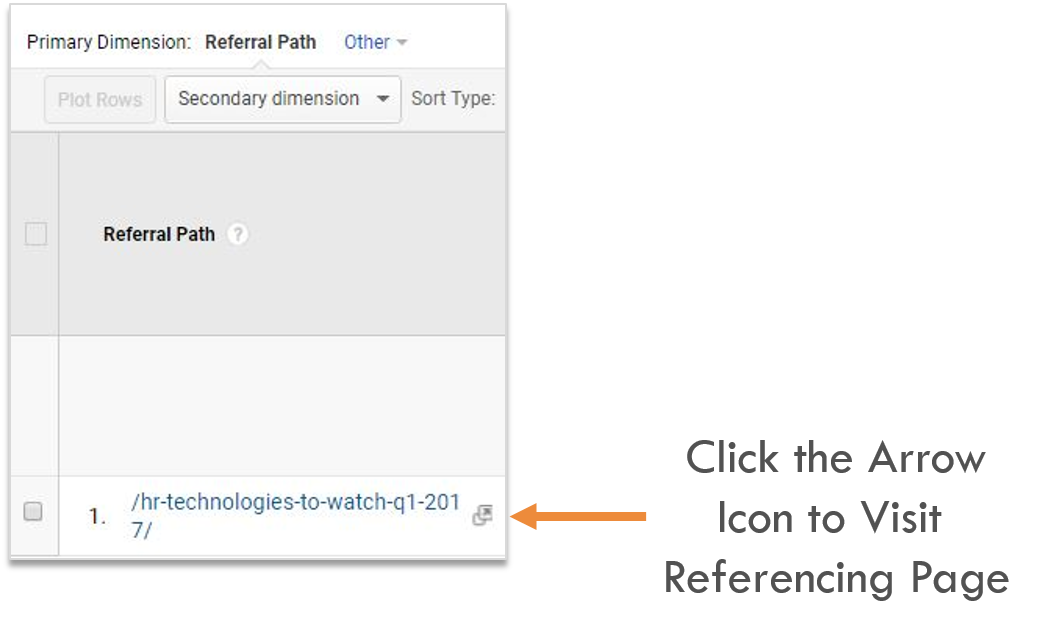
So now to actually see the backlink page, click one of the domains. This shows you the referral path. You can then click the arrow icon and visit the actual page referencing your site.
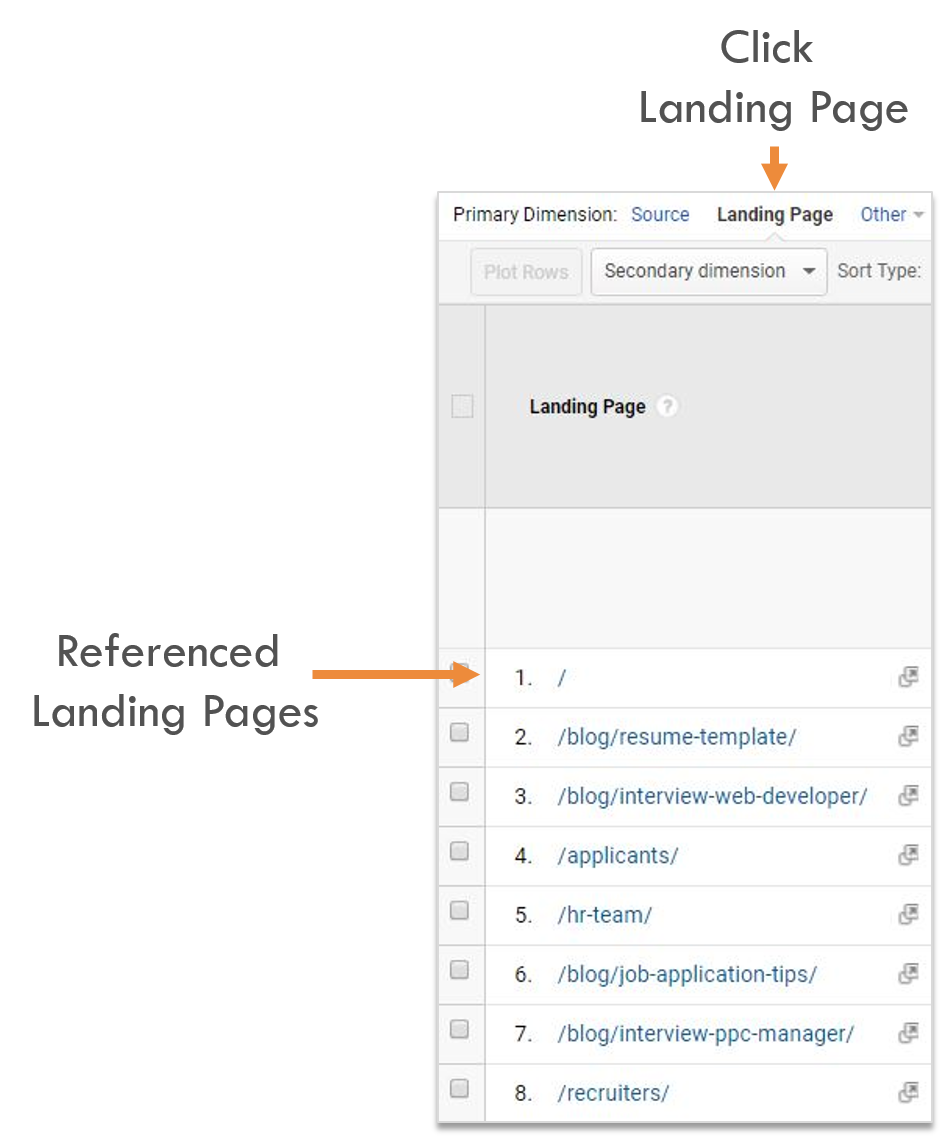
After checking backlinks, also have a look at which landing pages are getting references.
Do this by…
- Clicking “landing page” in the primary dimensions tab.
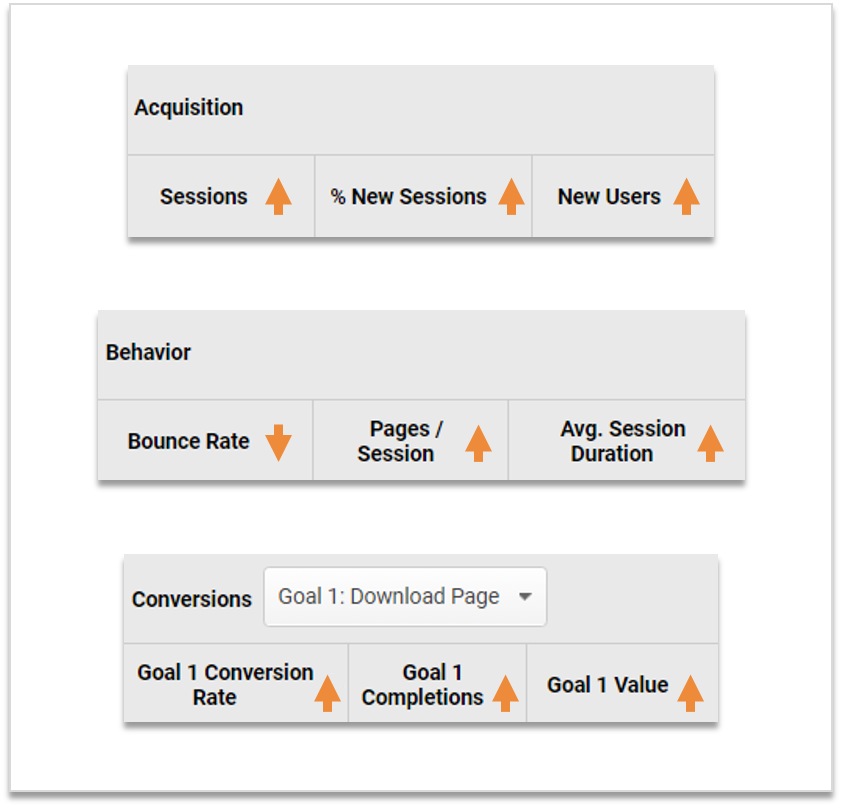
Now use the data tables to see which backlinks and landing pages are performing well.
Look at your acquisition, behavior, and conversion data. You want to see all these metrics trending upwards. Except for bounce rates. The lower the bounce rates, the better.
Advanced Filter Options
Using advanced filters you can dissect your backlink report even more. I like to use advanced filters to bubble up high performing backlink sources. Here’s how to use these filters.
First, click the advanced filter link.
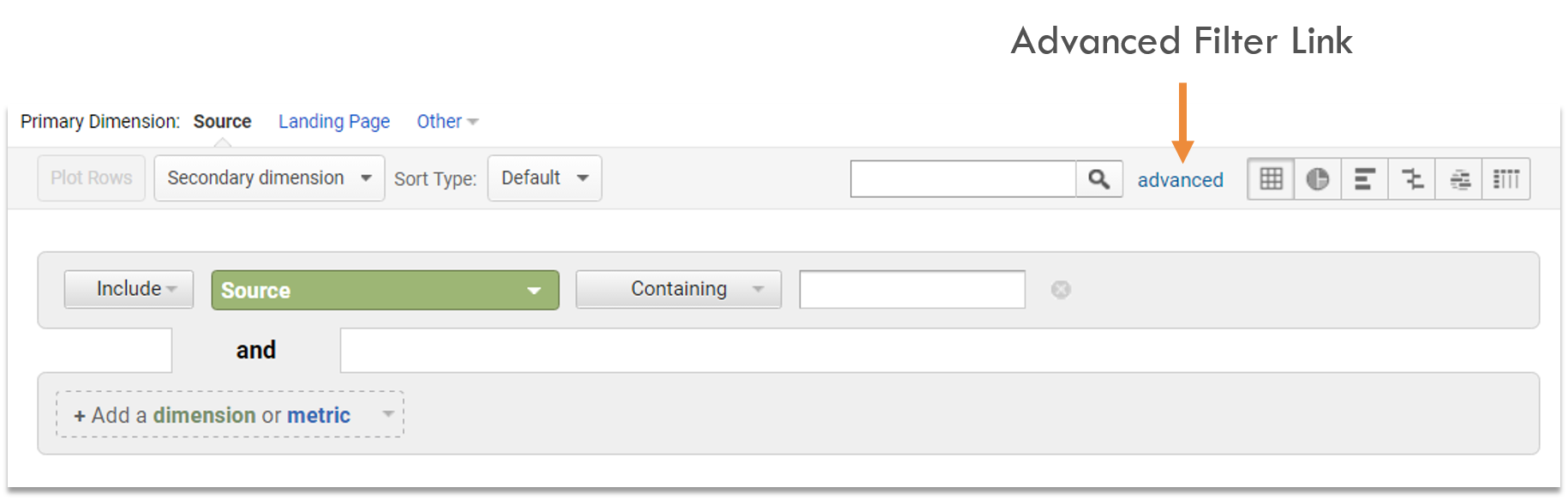
This drops down filter options. Now click the Dimension / Metric Dropdown. Here’s where you can select how you want to dissect your data.
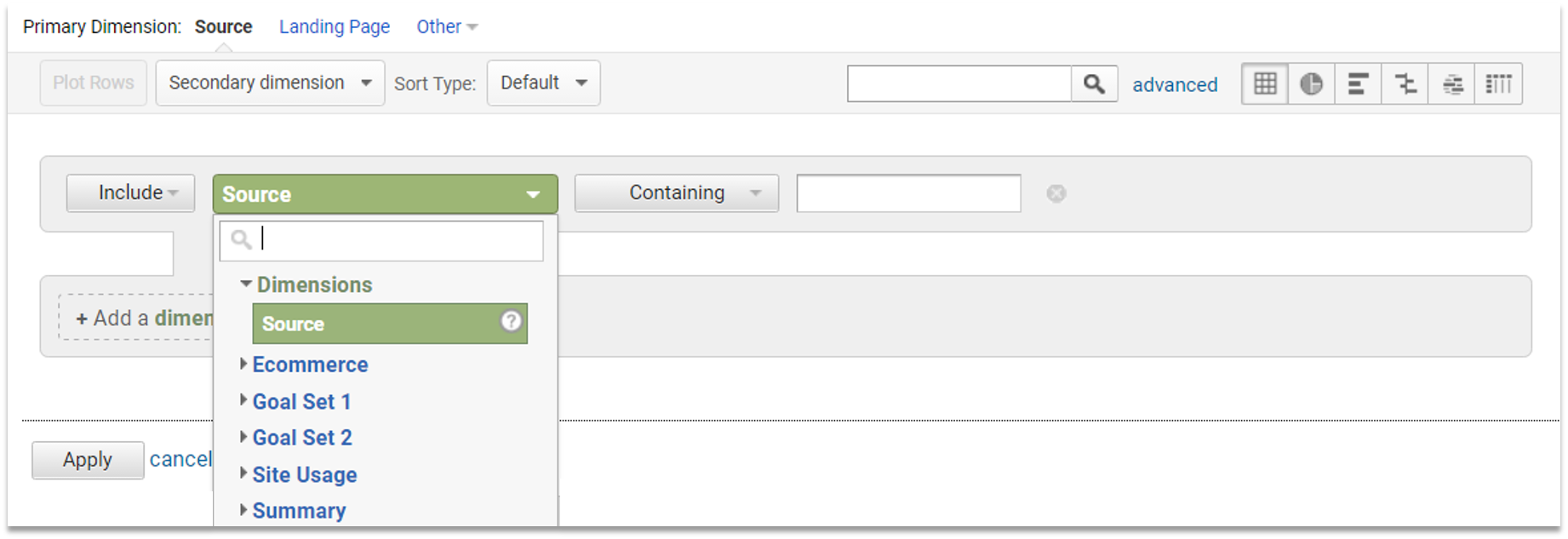
For this tutorial, I want to focus on backlinks giving me high-performing behavior metrics.
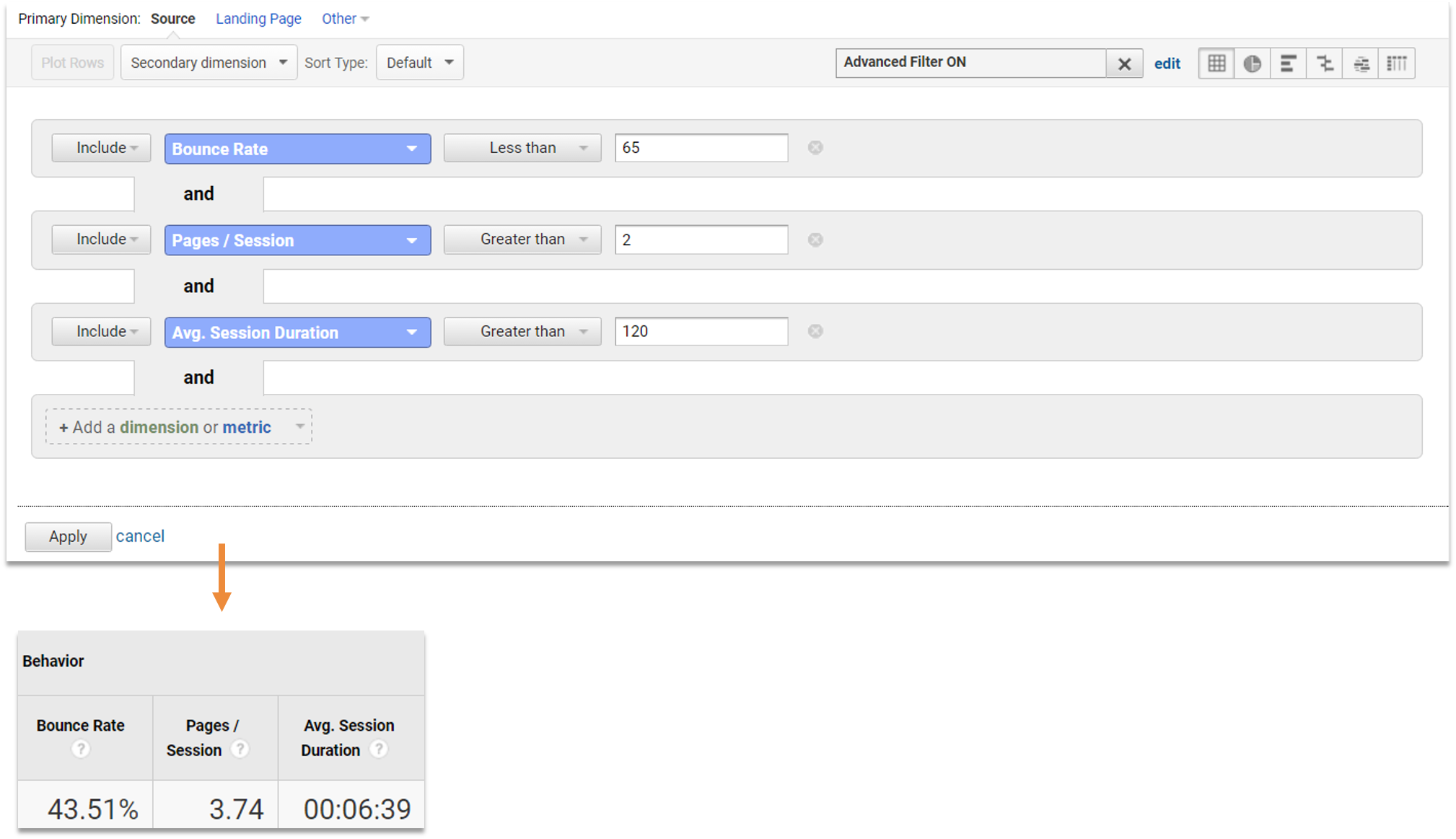
Because I only want to see behavior metrics, I have to set filters to “include”.
Next, I’ll find behavior metrics using the search box or by sifting through dropdowns.
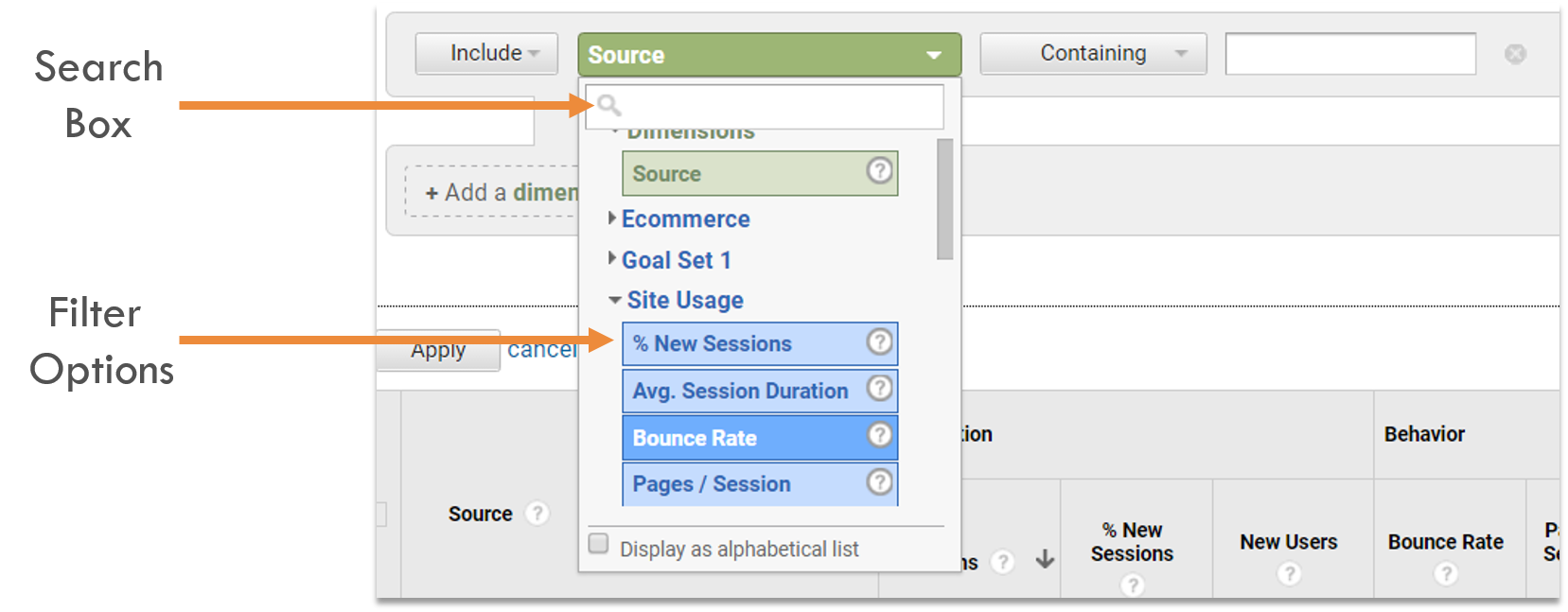
But here’s where it gets a bit tricky. Make sure you’re using your less than / greater than options properly.
For example, because we want to backlinks that give us good bounce rates, we’ll want to set a “bounce rate ceiling”. In the image above, you can see I set my bounce rate ceiling to 65%. This means I only want to see backlinks generating a 65% bounce rate or lower.
For my other behavior metrics, I want to see high volumes. So for pages per session, I set it to greater than two pages. I also set my session duration to greater than 120 seconds (2 minutes)…
…And voila! Google Analytics 4 will now only show backlinks meeting all these performance marks. Have some fun and play around with your advanced filter options.
How to Get Backlinks to your Site
If you’ve made it this far into the post, you’re serious about backlinks.
And that’s good because backlinks are a major ranking factor in search engine algorithms. But why? It’s because they act as a reference from online communities.
So moving forward, here are a few tips to keep in mind when building backlinks.
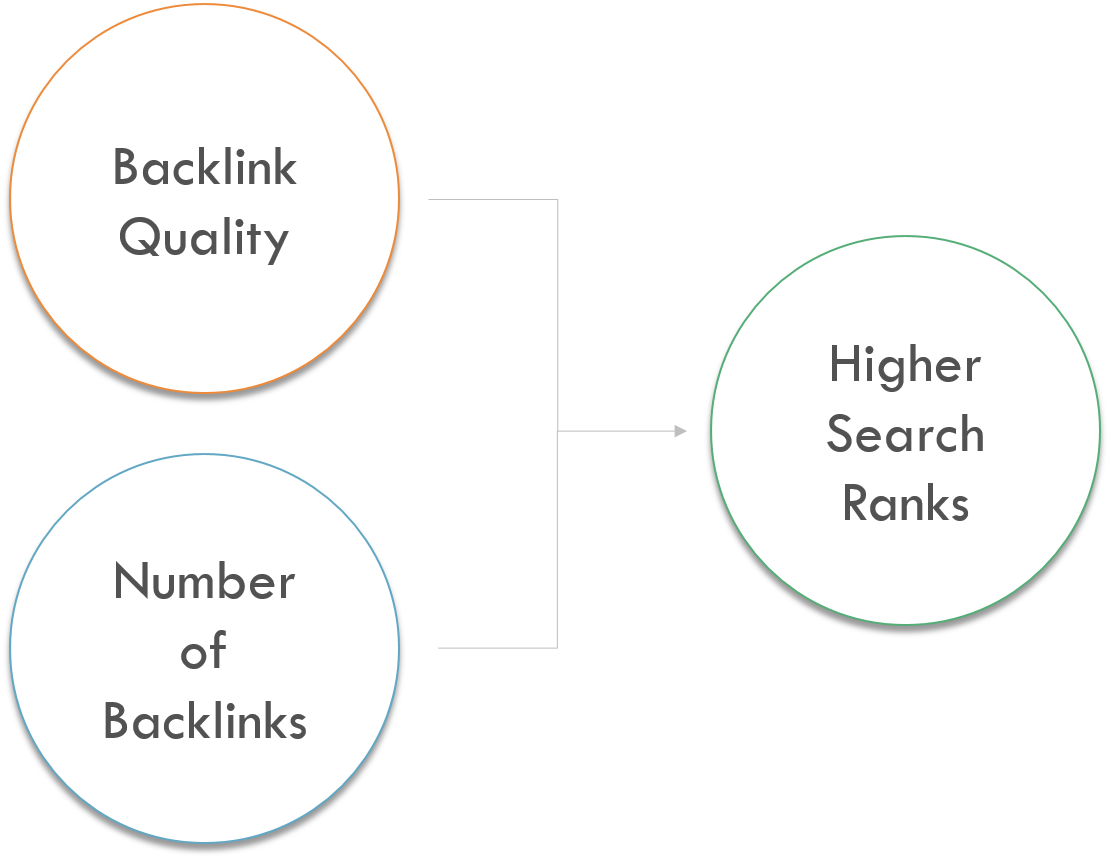
Backlink quality matters. Quality backlinks are references from domains with high authority. These are sites like BBC, Huffington Post, or Mashable for example.
Also aim for high volumes of backlinks. It’s awesome to get a few high-quality backlinks to your site. But a majority of backlinks will come from domains with lower authority. And that’s okay, because the more domains that link to your site, the more references you have from online communities. And search engines will take notice.
Now you know how to check backlinks in Google Analytics 4, techniques for high-level analysis, and factors behind backlinking. But don’t stop your quest to becoming a backlink ninja now.